Print Labels (PDF, Phomemo, Dymo..)
Written By Max
Last updated 3 months ago
Step 1: Print with Phomemo (smartphone or tablet)
Works with almost all modern printers.
Circle-Hand creates a PDF label, and you print it normally.
Recommended label size: 2,25 x 1,25” (57mm x 32mm) or 1.57"x 2.36” (40x60mm).
Official setup video:
Make sure to deactivate pop-up blocker in your browser settings.
Download the label life app
Connect your printer via bluetooth in the label life app
Add your label size in the label life app settings → custom
Make sure to follow the steps from the quick start guide:
Quick Start Guide Phomemo.pdf
2.0 MB• Document
Step 2: Set up on your computer
Connect your printer to your computer
Install driver from this page
Set up your label size in Circle-Hand and your system as described in the video:
Step 3: Generating the Label
Mark the item(s) for which you need labels → ‘Create labels’
Click on edit and choose the right label size and customize your label
How many labels you can create at once also depends on the processing power of your device (smartphones can usually handle 5-10 labels at once)
If your label size is not available, please write us max@circle-hand.com, and we will add it.
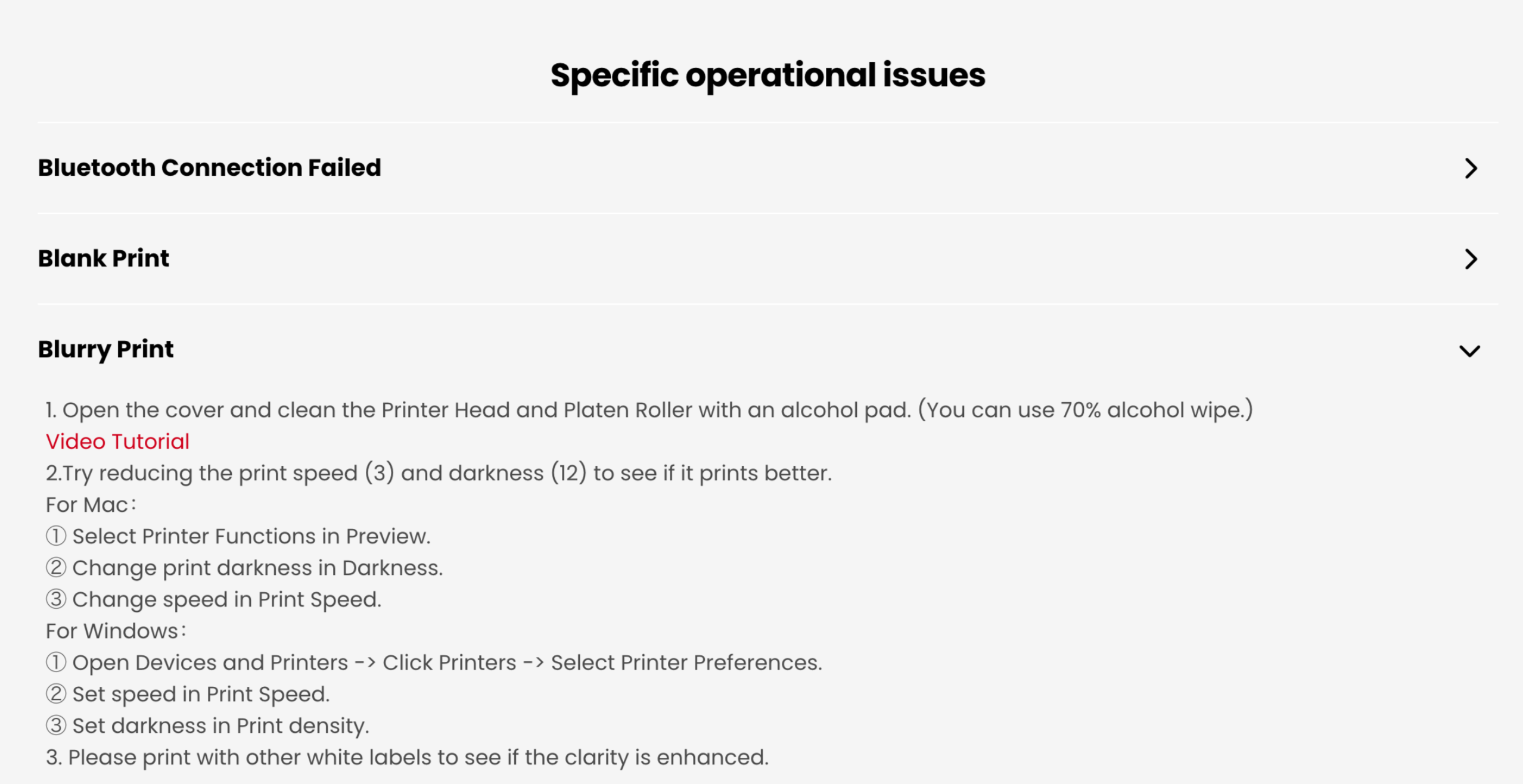
If your Label quality is low or the printing is off (Phomemo), try the following steps:
Was this helpful?
Still need help? Ask the team