Import Your Data
Written By Max
Last updated 8 months ago
Many shops use the import as chance to clean up their data. Circle-Hand works best with high quality data input - that's why most shops only import in-stock items.
You have 2 options for the data import:
Import clients and items via CSV with the Client template and Item template
Import items from Shopify: Video Tutorial
It’s best to try with 5-10 items first before importing everything at once.
Option 1: Import your clients and items via CSV
You can use these templates or map the columns during the upload.
Go to settings > Data Import > Upload your files
If your barcodes include letters, e.g. 28BL2921
Add the barcode with letters in the SKU column.
Go to Circle-Hand Settings > Square / Shopify and select “Send SKUs as Barcodes (for imported items only)”.
Click on “Push to Square / Shopify”
This will send the SKU into the barcode field in Square/Shopify, so you can scan items at checkout. One note: if you edit the item in Circle-Hand later, for example change the price, Circle-Hand will overwrite the barcode in Square with the barcode stored in Circle-Hand.
Best practice is usually to use numeric barcodes only. This makes syncing with other marketplaces and online shops easier. If only a few items have letters in the SKU, it may be easier to relabel those items so all inventory uses numeric barcodes.
Client CSV Fields
Field with * are mandatory

*Client Number: Unique identifier for each client, must be a number
*Email: Client's email address, must be in standard email format
First Name/Last Name: Client's full name
Phone: Client's contact number. Example: +4917829400
Street/City/Zip: Client's full address
Notes: Any additional information about the client
Payout Preference: One of: {Bank Transfer, PayPal, Cash, Twint, Venmo, Voucher, Store credit}
Payment details: Details for the chosen payment method (e.g., bank account number, PayPal email)
Client since: Date client relationship began. Date format: DD-MM-YYYY}
Item CSV Fields:
Field with * are mandatory

*Barcode: Unique identifier for each item (numeric). Example {100}
*Client ID: Matches with Client Number from client CSV
*Title: Item name or description
*Selling Price: Selling price of item without currency symbol, e.g. {29.50}
*Direct Purchase: Whether item is ‘Direct Purchase’ or ‘Consignment’
Purchase Price: Only applicable for direct purchases
Consignment Share for Client: Percentage share for client {0-100}
Description: Detailed item description.
Hand-In Date: {27/04/2024}
Expiration Date: When item should be returned/donated if unsold. Example {27/04/2024}
Remaining Policy: What to do with unsold items. One of {Return, Donate, Discard}
Sold Online/Sold in Store: Where item is sold ‘Online’ or 'Store’
Condition: One of {New with Tags, New without Tags, Very Good, Good, Acceptable}
Gender: {Male, Female, Unisex}
Season: {Spring, Summer, Fall, Winter}
Category/Brand/Color/Size/Material: Item specifications
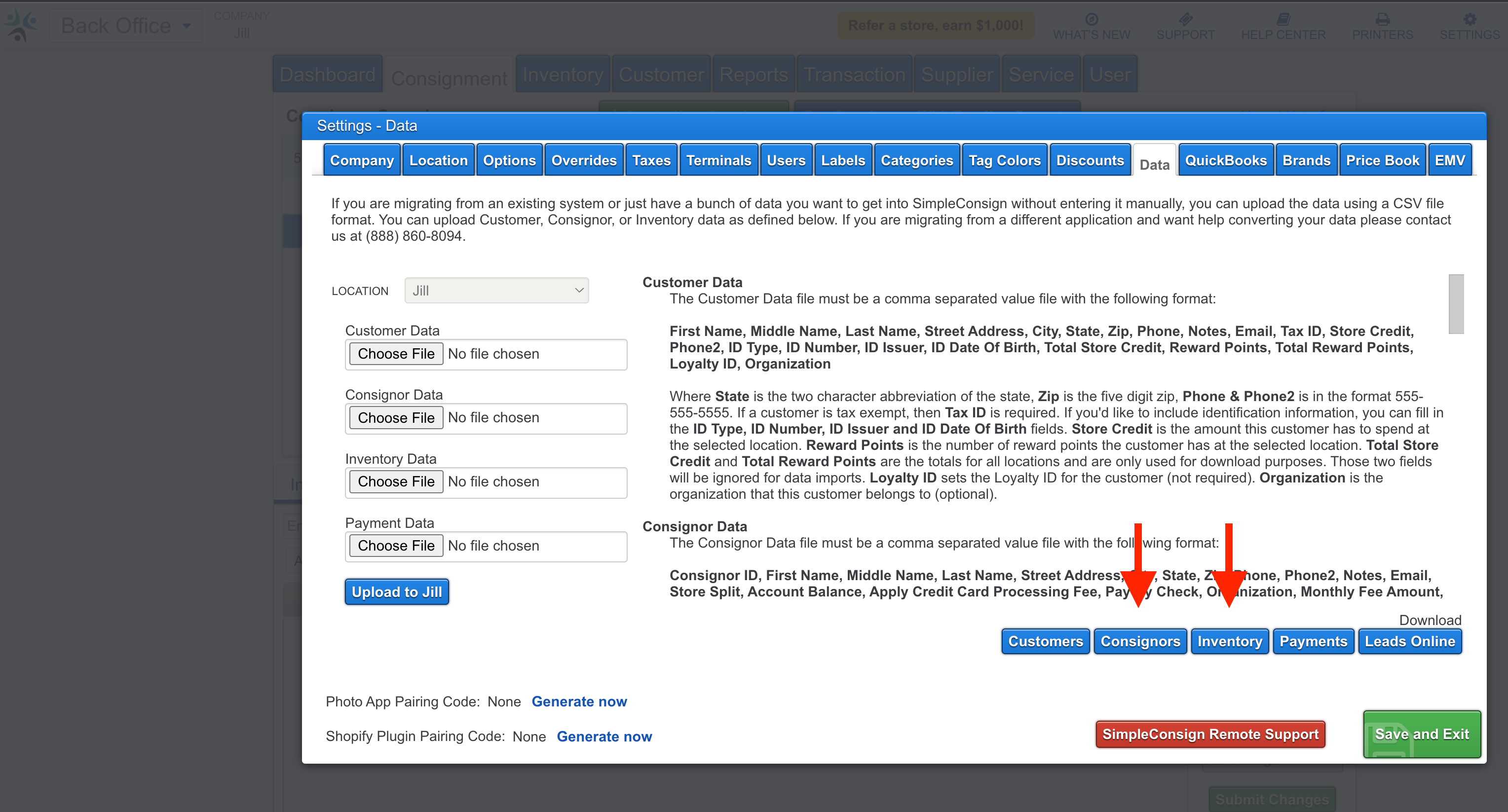
Import from SimpleConsign
Go to settings > Data > Click “Consignors” and “Inventory” and select status = active
Import from ConsignPro
The process is super straightforward. You just need to send us the database file from ConsignPro, which you’ll find in your folder, the MDB File:
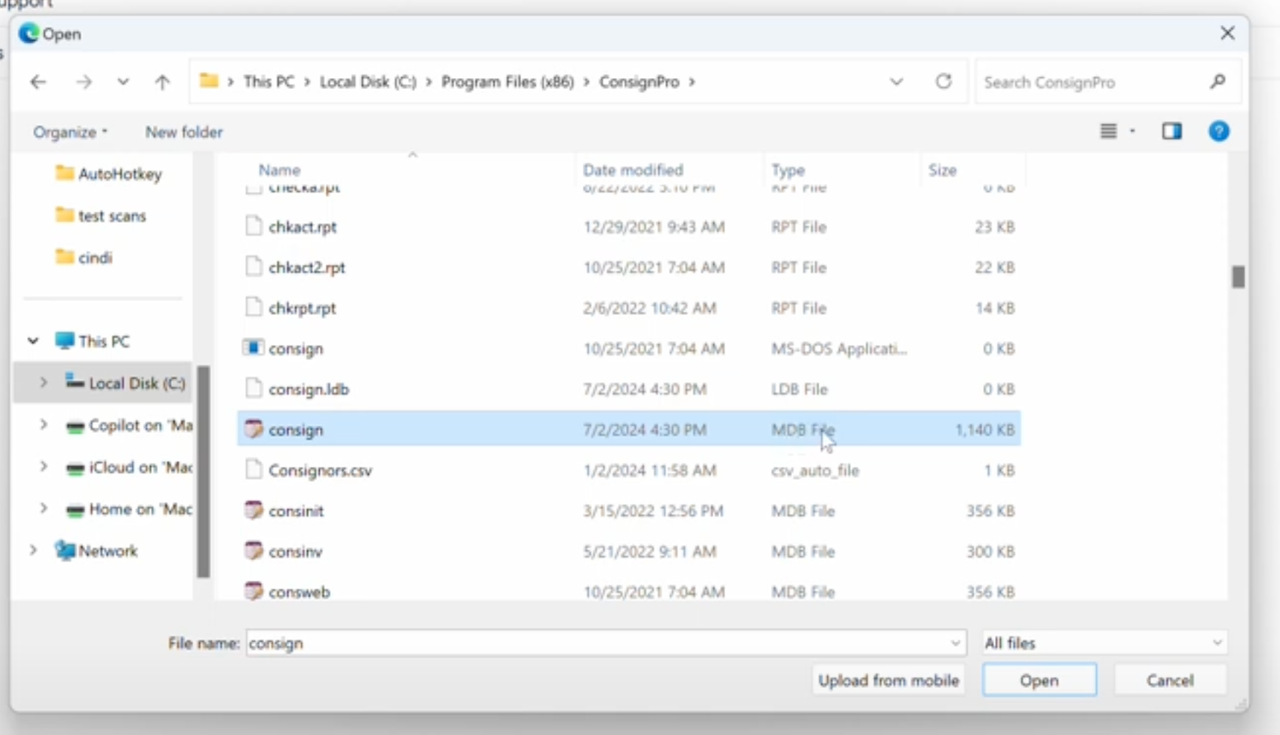
Once you have the file you can share it via a platform of your choice (e.g. Google Drive) or whichever works best for you. We will send you the CSV files for clients and items that you can then upload directly in Circle-Hand. Feel free to reach out if you have any questions!
As the transition of the file takes some manual work from our team, the import service is only available in the yearly plan.
Import from Liberty Software / Resale World
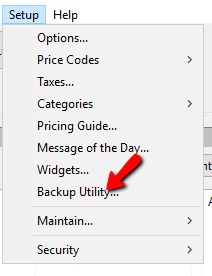
You can create a backup following this instruction. Make sure to take note of the location where you create the backup. After that you could create a CSV via a converter like this (.bak to .csv) and upload the data to Circle-Hand. Feel free to reach out if you have any questions!
Import from Ricochet Consign
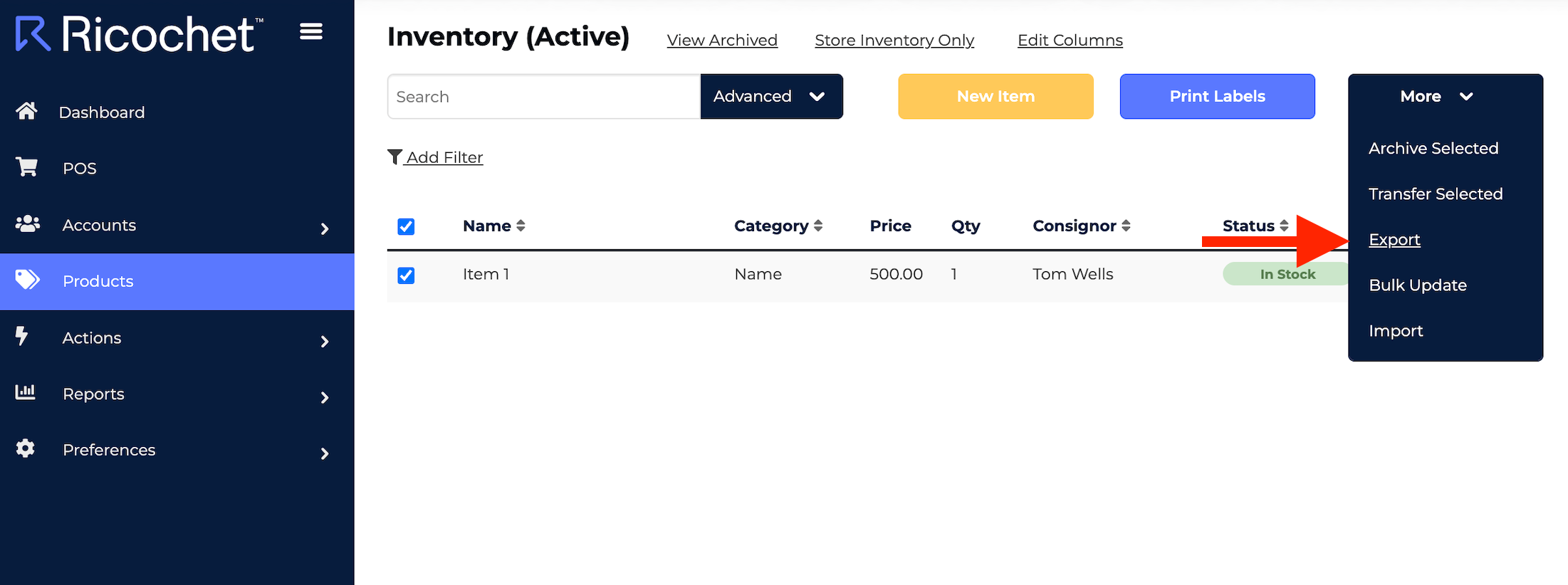
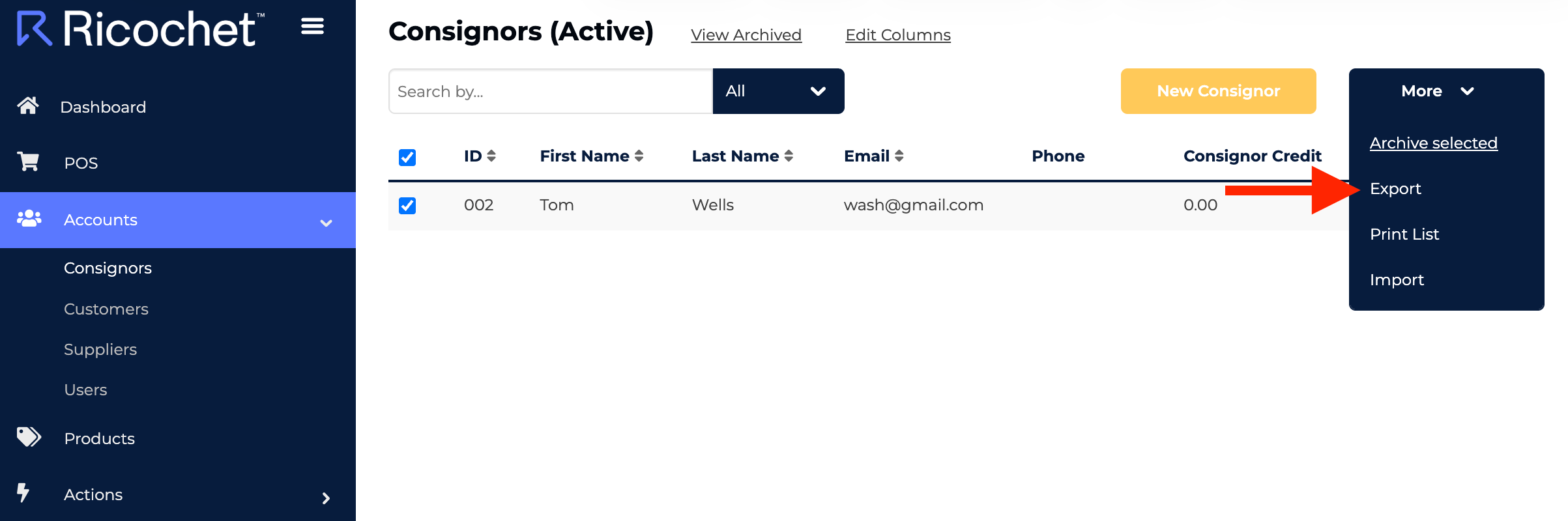
Click on Accounts > More > Export to export all consignors
Click on Products > More > Export to export all your items
Import from ConsignCloud
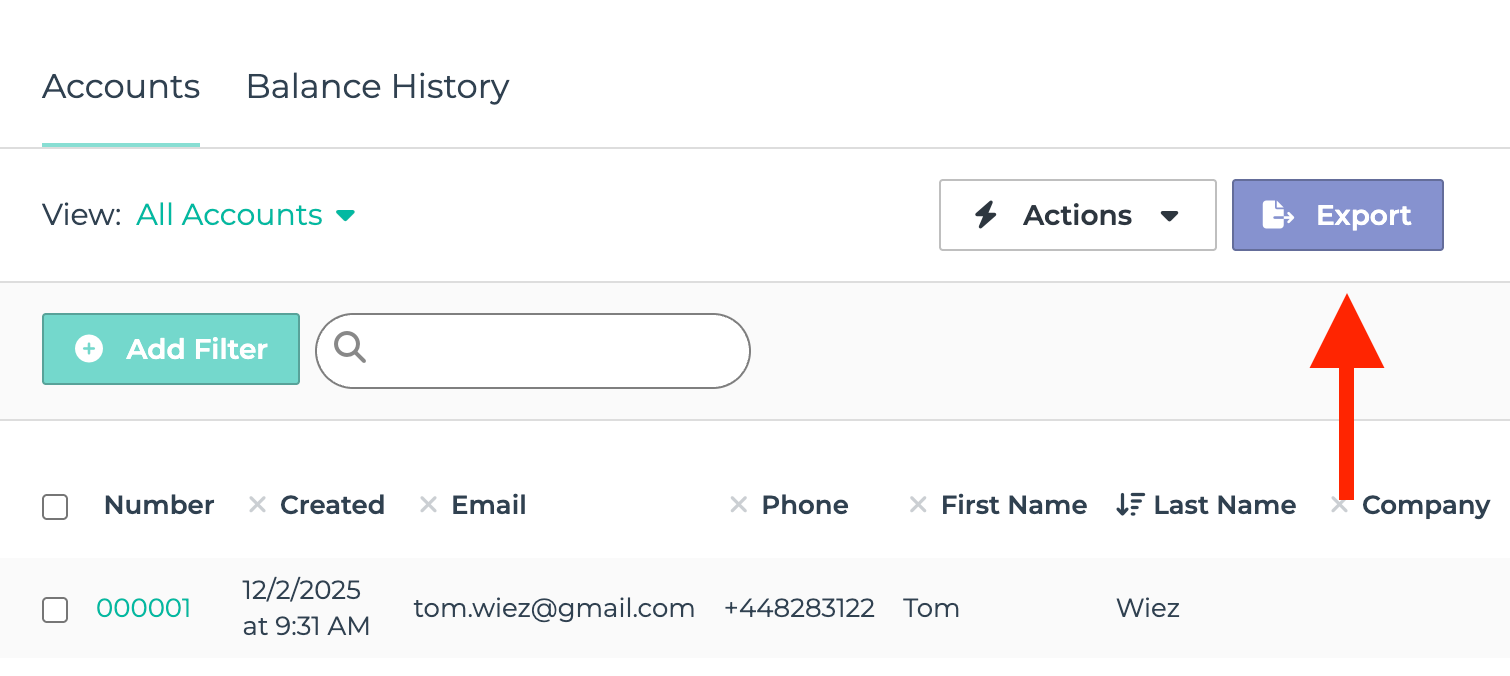
You click on ‘Inventory’ and ‘Accounts’ and create an export from there. Then you can upload the files directly into Circle-Hand using the Import Wizard.
Was this helpful?
Still need help? Ask the team